NovaCaptions
Subtitles in. Captions that hold the scroll out.
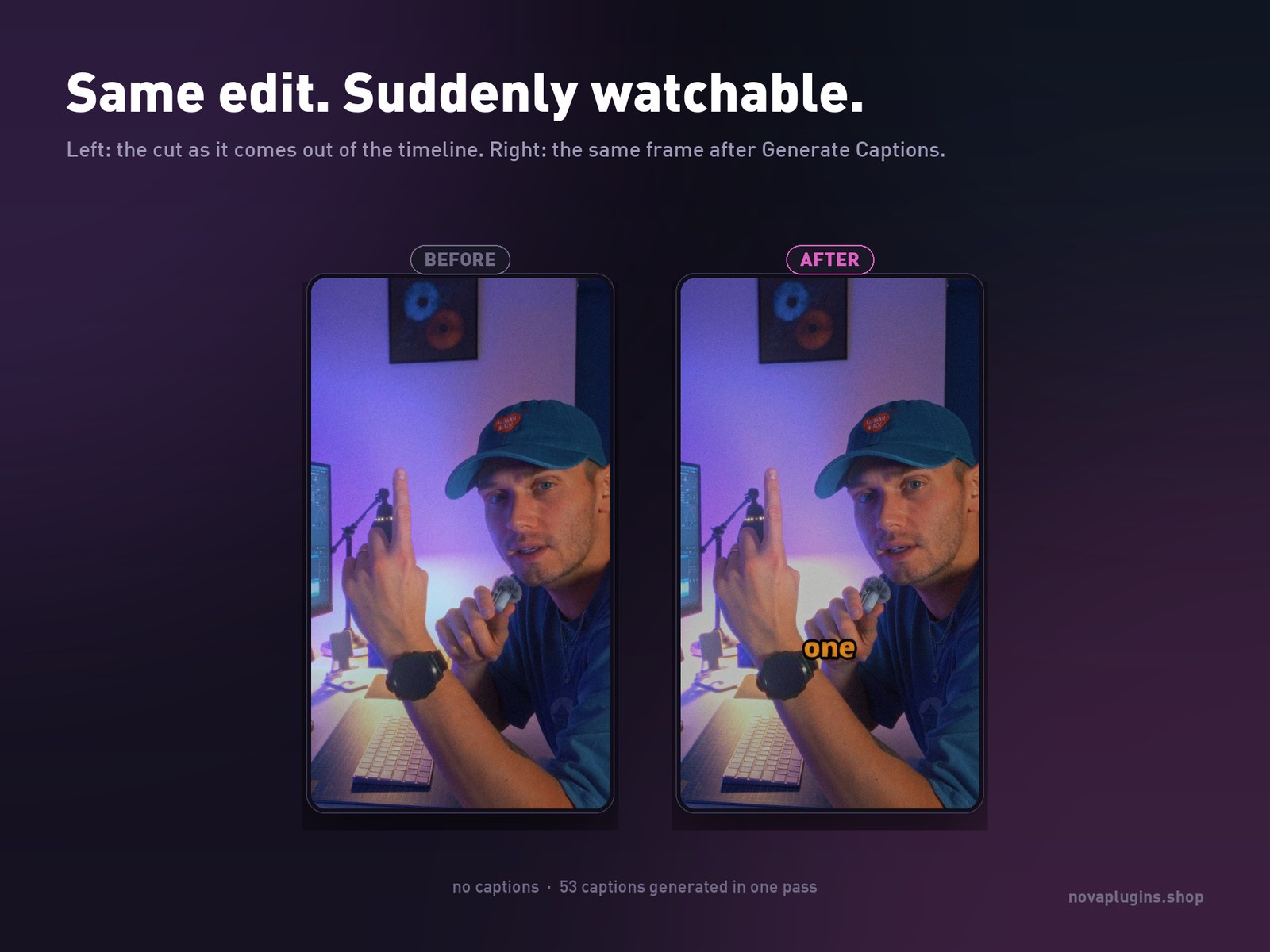
One click rebuilds any subtitle track as styled, animated Text+ captions — 1 to 5 words on screen, your look, your colours, timed exactly to what was already there. It builds them on a brand-new track above your edit, so nothing below is ever cut, split or moved. Resolve already makes the subtitles; NovaCaptions is what turns them into captions people actually watch.
What it does
One pass, the whole timeline
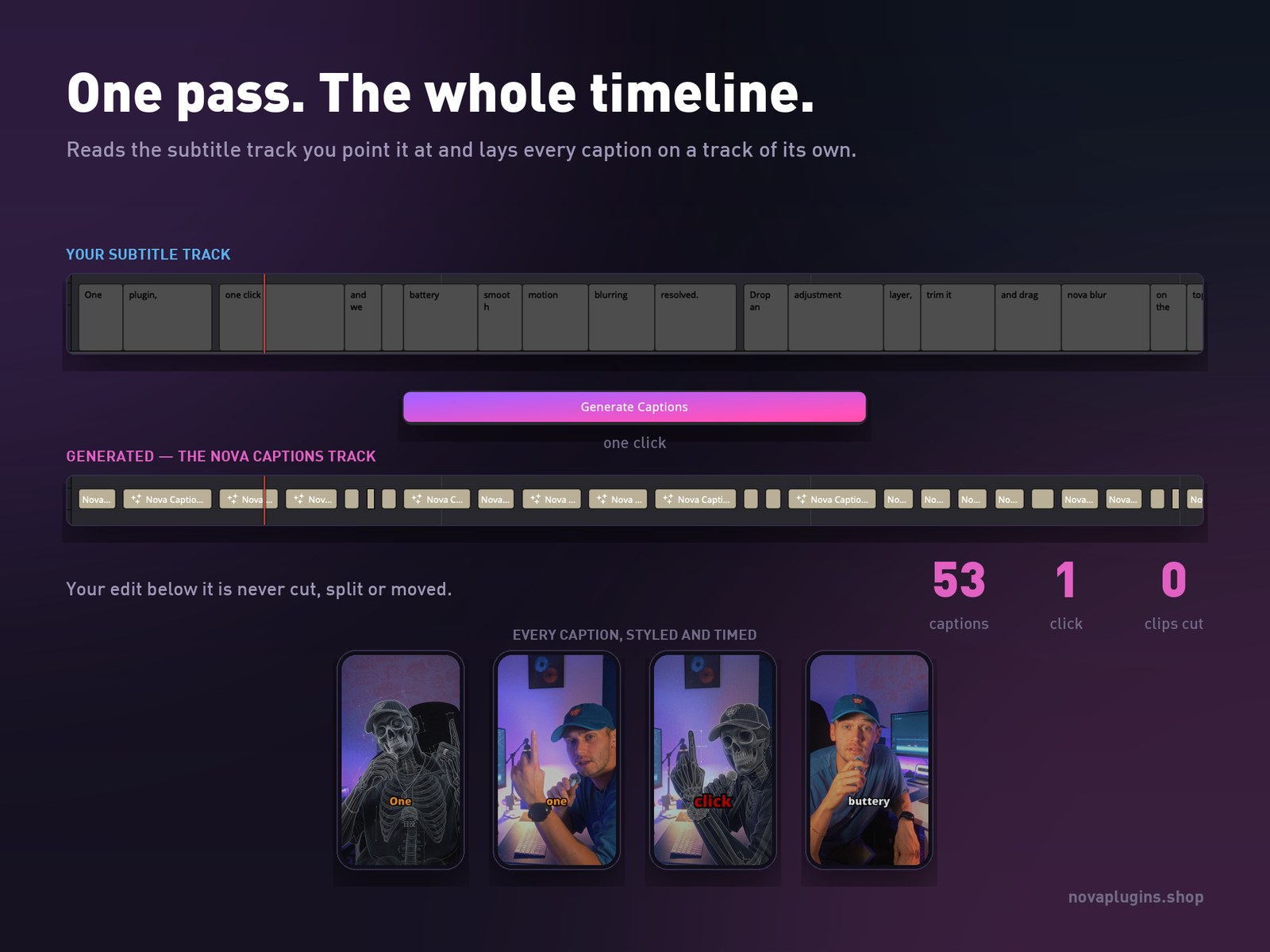
Point it at a subtitle track and hit Generate. Every line comes back as a styled, animated Text+ caption, split 1 to 5 words at a time, timed to the original — a 53-caption edit in a single click.
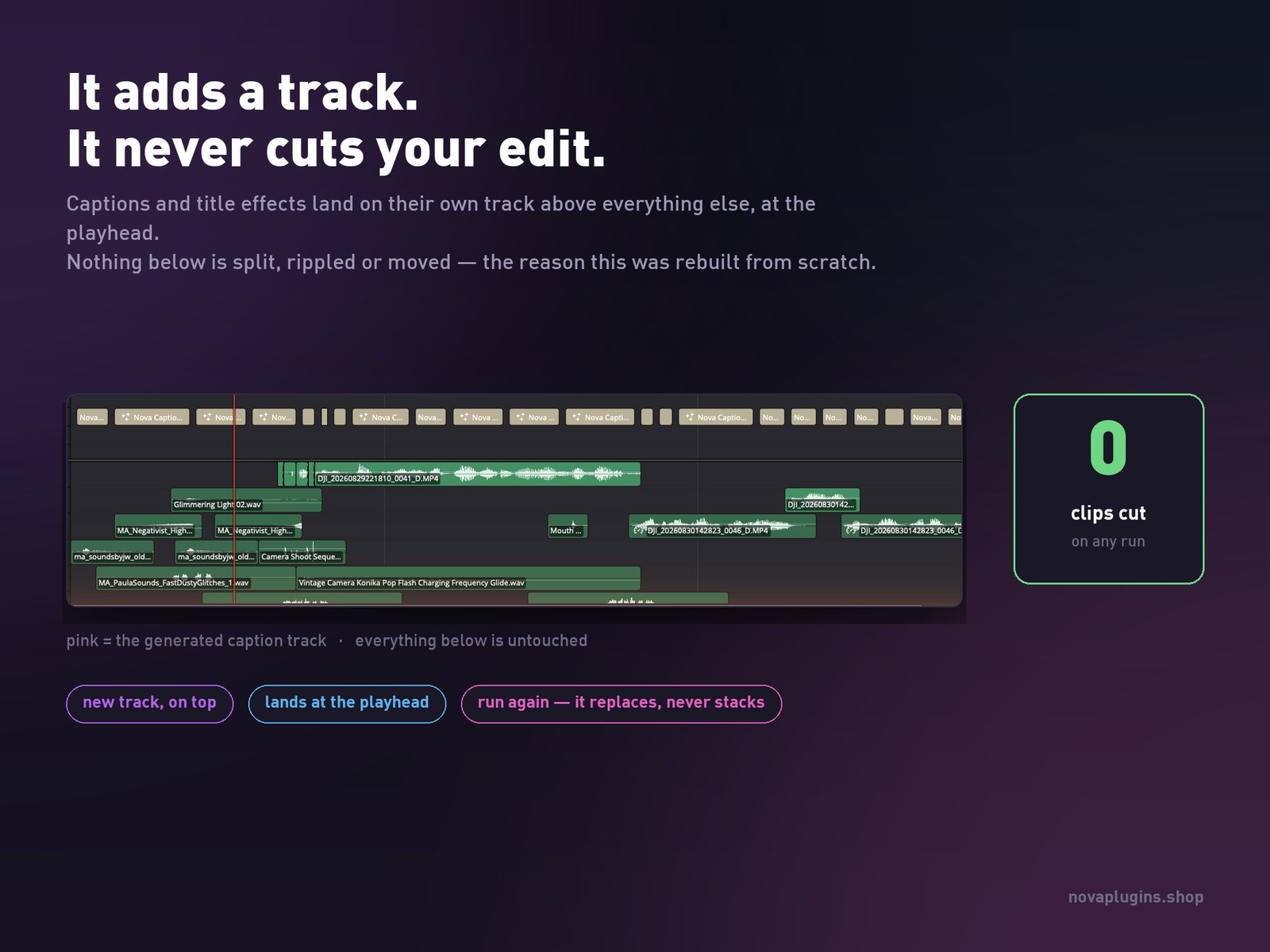
It adds a track. It never cuts your edit.
Captions land on a brand-new video track above everything else. Nothing below is split, rippled or moved — that's the reason the whole thing was rebuilt from scratch.
12 looks that preview themselves
No guessing from a name in a list: every tile plays its own effect inside the panel, and the selected one previews on your actual timeline before you commit.
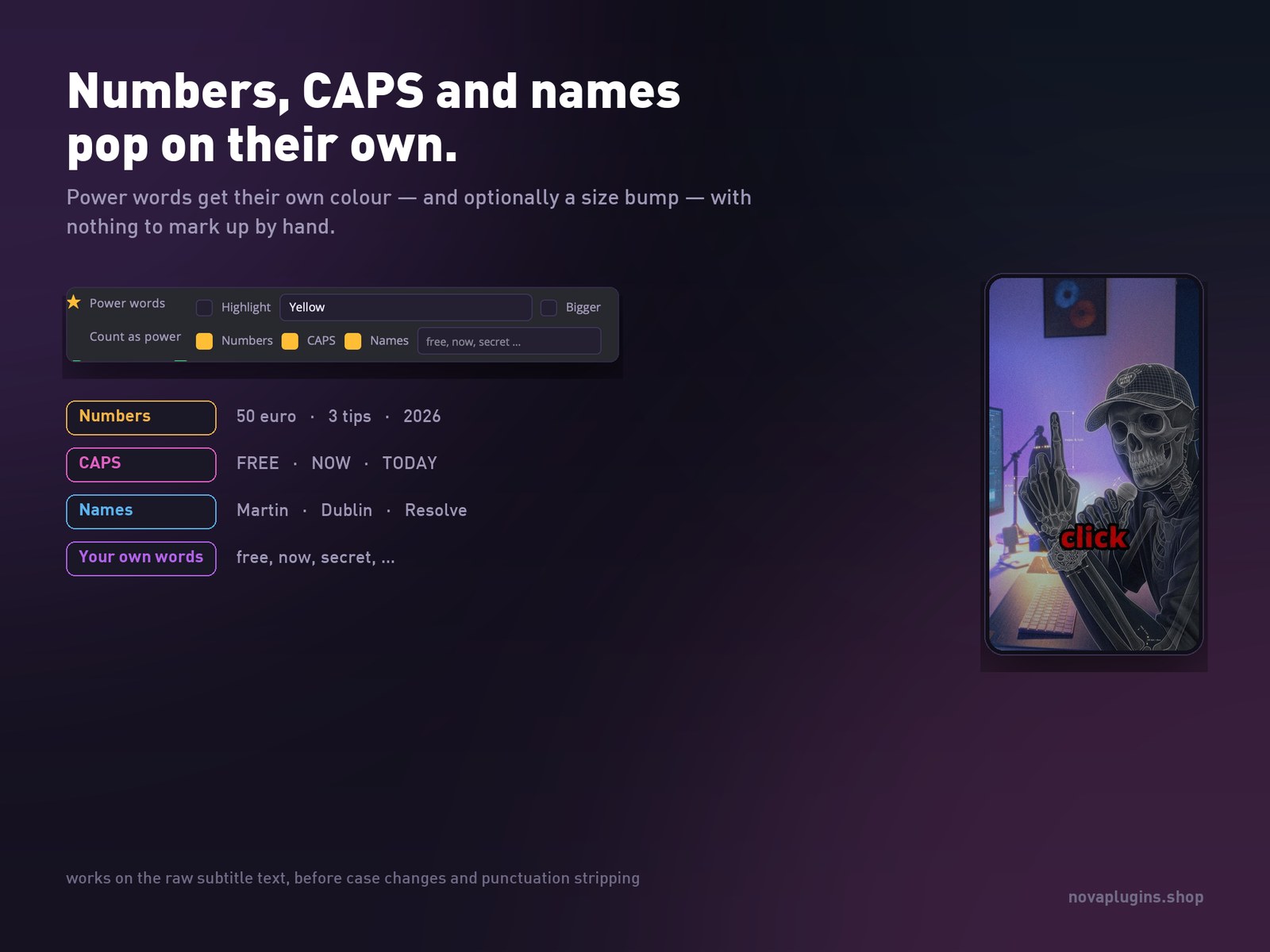
Power words pop on their own
Numbers, ALL-CAPS words, names and your own keyword list get their own colour — and optionally a size bump — with nothing to mark up by hand.
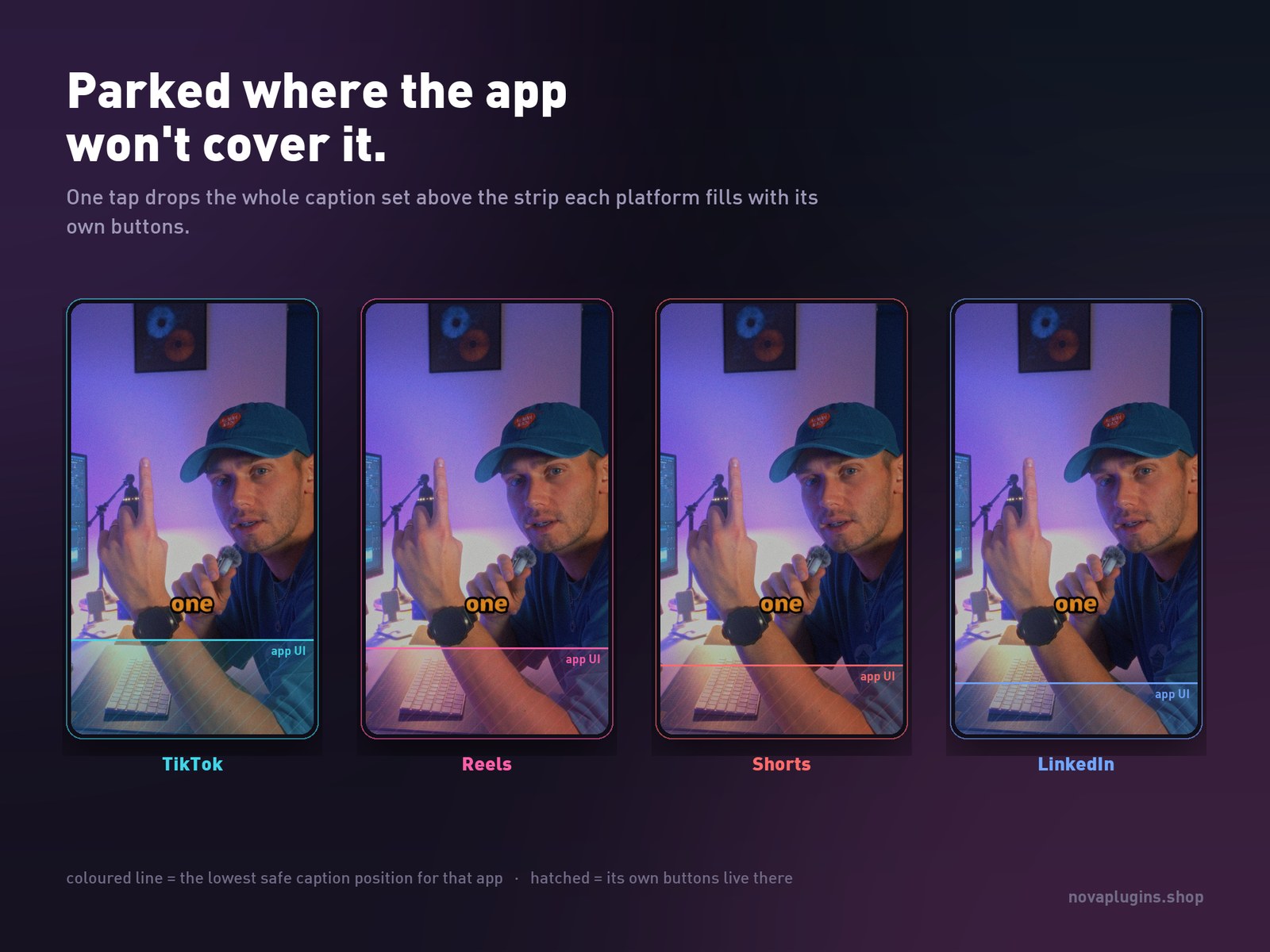
Parked where the app won't cover it
One tap moves the whole caption set above the strip TikTok, Reels, Shorts or LinkedIn fills with its own buttons. No more captions hidden behind a Follow button.
Clean text, automatically
Strip periods, commas, question marks, quotes, semicolons, colons, exclamation marks and dashes — individually or all at once — plus letter case and gap closing between captions.
See it in action
Click any image to see it full-size.
12 looks, every one previews itself
Each tile plays its own effect inside the panel — hover to highlight, click to select, then Add. Click the image to see it full-size.
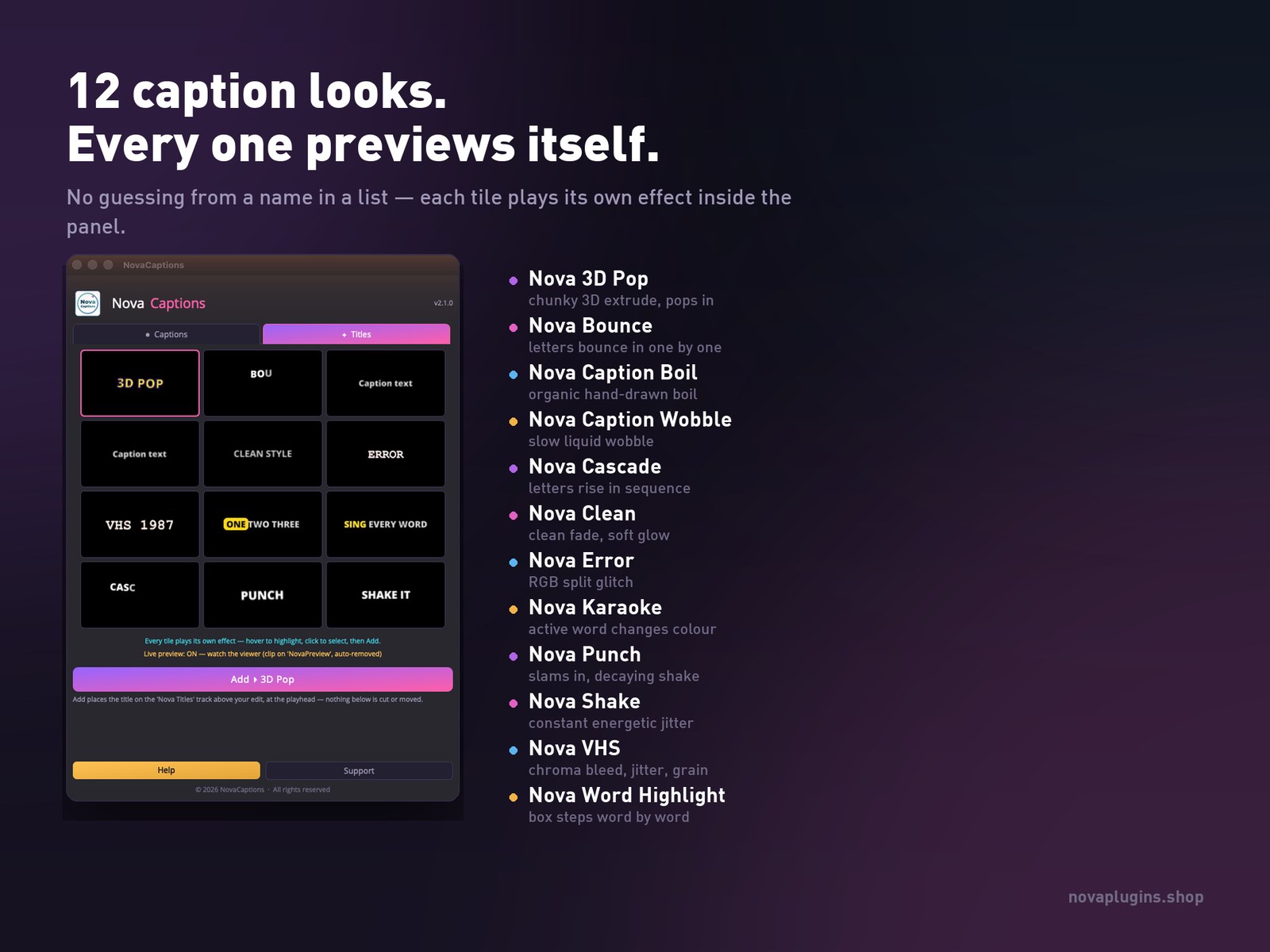
Nova 3D Pop
Chunky 3D extrude, pops in.
Nova Bounce
Letters bounce in one by one.
Nova Caption Boil
Organic hand-drawn boil.
Nova Caption Wobble
Slow liquid wobble.
Nova Cascade
Letters rise in sequence.
Nova Clean
Clean fade, soft glow.
Nova Error
RGB split glitch.
Nova Karaoke
The active word changes colour.
Nova Punch
Slams in with a decaying shake.
Nova Shake
Constant energetic jitter.
Nova VHS
Chroma bleed, jitter and grain.
Nova Word Highlight
A box steps word by word.
Placed, styled and previewed before you commit
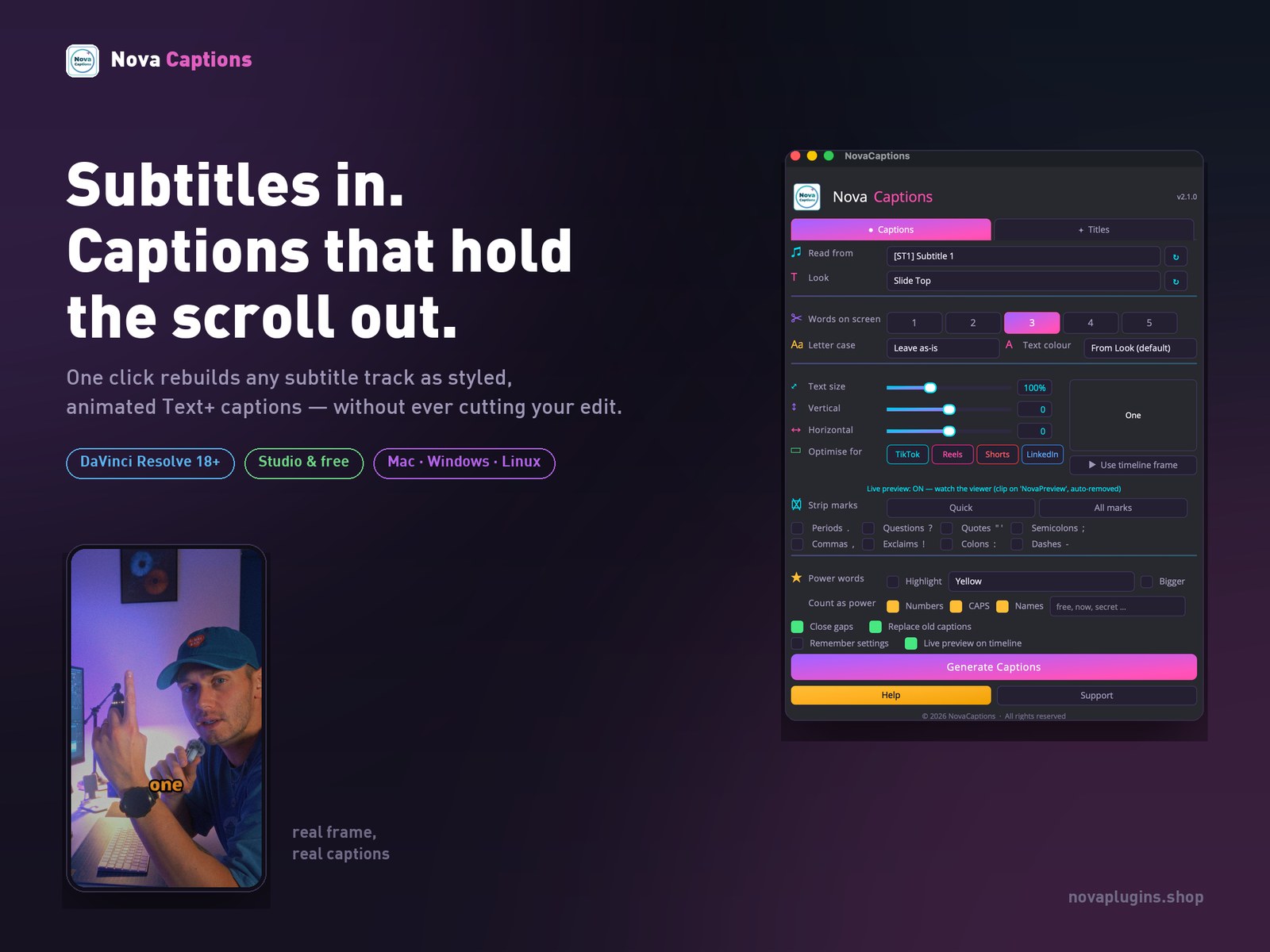
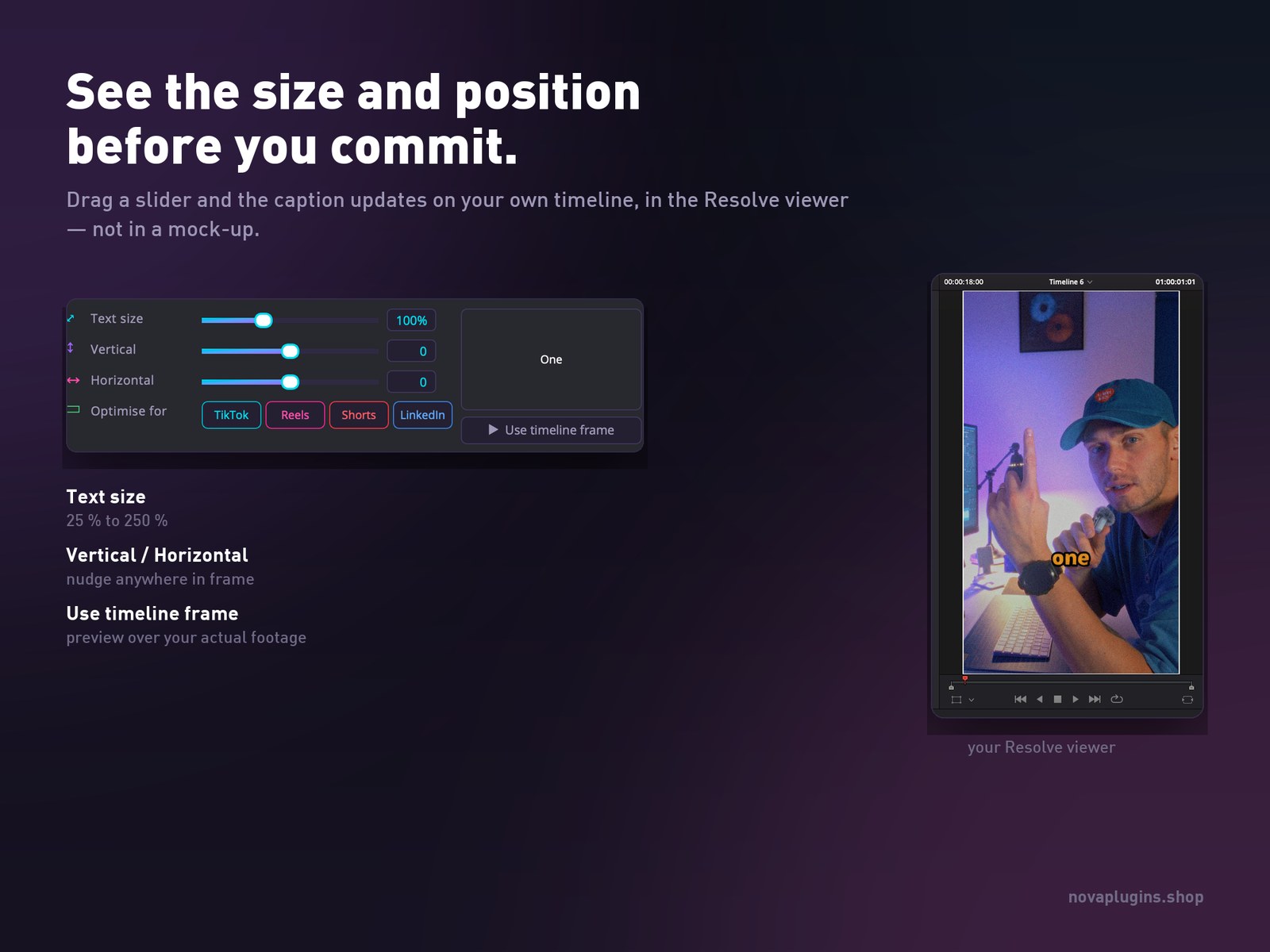
Text size runs 25% to 250%, vertical and horizontal nudge anywhere in frame, and every change redraws in your own Resolve viewer — not in a mock-up.
Every control
One panel. Everything is a dropdown, a slider or a checkbox — no node graph, no keyframes.
Source
Read from (any subtitle track on the timeline) · Look (the 12 caption styles) · refresh both without leaving the panel
Text
Words on screen (1–5) · Letter case · Text colour (from the look, or your own)
Size & position
Text size 25%–250% · Vertical nudge · Horizontal nudge · Use timeline frame (preview over your real footage)
Platform
Optimise for TikTok · Reels · Shorts · LinkedIn — one tap lifts the whole set above that app's buttons
Strip marks
Quick or All marks · Periods · Commas · Questions · Exclaims · Quotes · Colons · Semicolons · Dashes
Power words
Highlight colour · Bigger · Count as power: Numbers · CAPS · Names · your own keyword list
Behaviour
Close gaps · Replace old captions · Remember settings · Live preview on timeline
Titles tab
The 12 title effects, each self-previewing · Add drops the selected one on a new track at the playhead
How it works
Get a subtitle track
Use Resolve's own Create Subtitles from Audio, or import an SRT. NovaCaptions reads whatever subtitle track you point it at.
Pick a look and hit Generate
Open Workspace → Scripts → NovaCaptions, choose one of the 12 looks, set words-on-screen and your platform, then press Generate Captions.
Adjust and run it again
Nudge size, position or colour and generate again — it replaces the caption track instead of stacking a second one, and your edit below is untouched either way.
Installs in one double-click
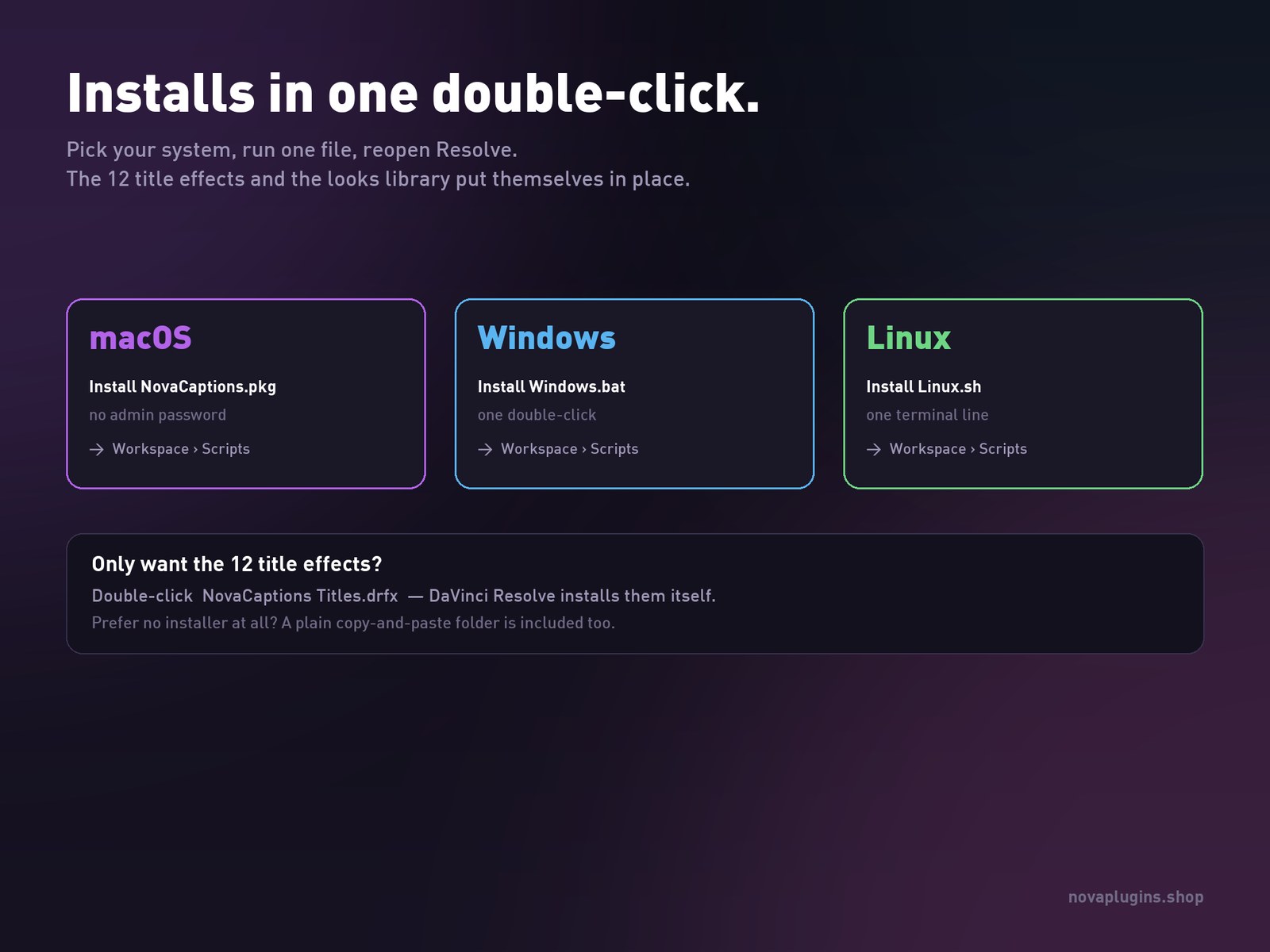
Pick your system, run one file, reopen Resolve. The 12 title effects and the looks library put themselves in place.
macOS
Run Install NovaCaptions.pkg — no admin password needed.
Windows
Double-click Install Windows.bat.
Linux
One line in the terminal: Install Linux.sh.
Then reopen Resolve and find it under Workspace → Scripts → NovaCaptions. Only want the 12 title effects? Double-click NovaCaptions Titles.drfx and Resolve installs them itself — a plain copy-and-paste folder is included too.
Reviews
No reviews yet — be the first to review NovaCaptions.
FAQ
Does it work in the free version of Resolve?+
Yes — free or Studio, Resolve 18 or newer, on macOS, Windows and Linux. It runs as a script under Workspace → Scripts, and the caption looks are ordinary Text+ titles.
Will it cut or move my edit?+
Never. Captions and title effects are built on a brand-new video track above everything else, at the playhead. Nothing below is split, rippled or moved — that guarantee is the reason it was rebuilt from scratch.
Does it transcribe my audio?+
No, and it doesn't need to. Resolve's own Create Subtitles from Audio (or any imported SRT) makes the subtitle track; NovaCaptions is what turns that track into styled, animated captions.
What if I run it twice?+
It replaces the caption track rather than stacking another one — so you can keep tweaking size, colour and placement and regenerating until it looks right.
Can I edit a caption afterwards?+
Yes. Every caption is a normal Text+ clip, so you can retype, restyle or delete any one of them in the Inspector exactly as you would any other title.
What do I get, and refunds?+
A lifetime NovaCaptions license — one-time purchase (currently €18 as a launch price, rising to €25), no subscription, free updates for life. 14-day no-questions refund via Lemon Squeezy.